Find the colour harmony in every photograph.
HueCompass reads the dominant colours of your photo, plots them on a colour wheel, ranks the harmonies that fit and tells you exactly which hues to shift — so you can grade with purpose in the editor you already use.
Features
From “something feels off” to a clear plan.
HueCompass makes colour relationships visible, so grading decisions stop being trial and error.
Automatic palette extraction
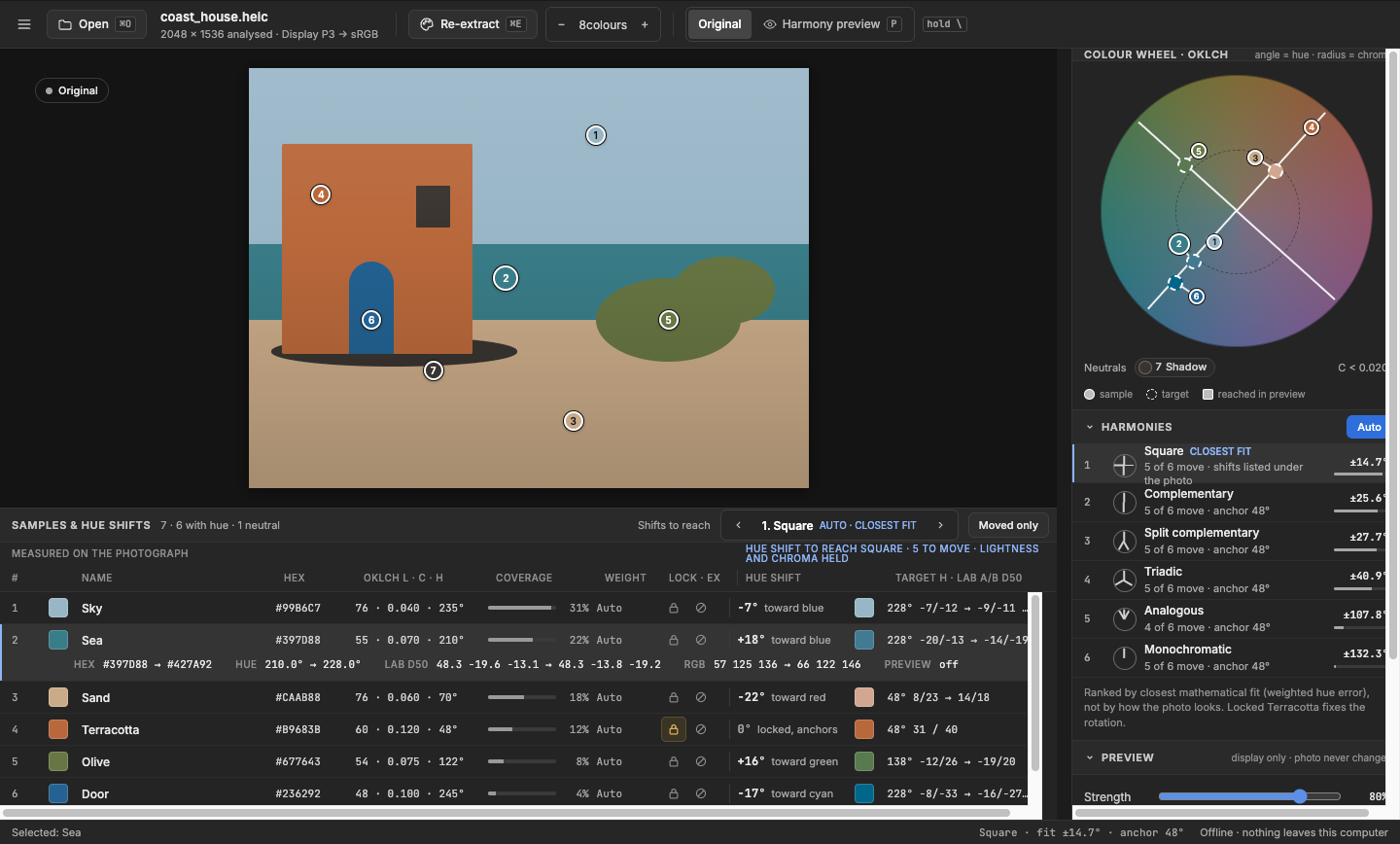
The dominant colours are sampled for you and pinned to the region of the photo they come from. Click anywhere to add your own samples.
Perceptual colour wheel
Every sample is plotted by hue and chroma on an OkLCh wheel, where distances match what you see. Neutral tones are shown apart.
Ranked, explainable harmonies
Six classic patterns are ranked by closest mathematical fit, with the score, the number of moves and the anchor colour shown openly.
Precise hue-shift guidance
Each colour gets a shift in degrees, a direction and a target swatch — like “+18° toward blue” — ready to apply in Lightroom, Photoshop or any HSL mixer.
Live harmony preview
See the result on a copy of your photo. Adjust strength and reach, and hold \ to compare with the original.
Private and offline
No account, no cloud, no tracking. Your photos never leave your computer, and the original file is never changed.
Six harmonies
Pick the mood. HueCompass finds the fit.
Lock a colour you love and every pattern is fitted around it. Drag the anchor to turn the harmony by hand.
Analogous
A sense of calm.
Restful, cohesive, natural.
Monochromatic
Quietly elegant.
Unified, restrained, sophisticated.
Complementary
Charged with drama.
Strong contrast, impact, visual tension.
Split complementary
A softer kind of bold.
Lively contrast with a gentler edge.
Triadic
Alive with playful energy.
Vibrant, balanced, lively.
Square
Bursting with life.
Rich, varied, energetic.
How to use HueCompass
Your first analysis in four steps.
It takes about a minute. The numbers on the screenshot match the steps.
-
Open a photograph
Drag a photo onto the window, click Open ⌘O, or paste an image copied from your editor ⌘V. JPEG, PNG and HEIC are supported; the photo is shown upright and colour-managed.
-
Extract the palette
Click Extract palette ⌘E. The dominant colours appear as numbered pins and rows in the samples table. Click the photo to add a sample of your own, then rename, weight, lock or exclude any row.
-
Choose a harmony
The inspector ranks the six harmonies by closest fit. Select one: the wheel shows where each colour should go, and the table lists every shift — for example +18° toward blue. Lock a colour to make it the anchor.
-
Preview, then apply in your editor
Switch to Harmony preview P, set strength and reach, and hold \ to compare. Then apply the shifts by eye in your editor’s HSL or colour mixer — copy the guidance summary with ⇧⌘C.
Handy shortcuts
- Open photo ⌘O
- Extract palette ⌘E
- Harmony preview P
- Compare with original hold \
- Copy sample values ⌘C
- Copy guidance ⇧⌘C
On Windows, use Ctrl in place of ⌘.
Free & Full
Free to explore. Unlock Full once.
One app, one download. Everything is free except saving projects and exporting photos — unlock both with a one-time licence key. No subscription.
Free
Every analysis and preview feature, free.
$0
- Open photos and extract palettes
- Add, edit and lock your own samples
- All six harmonies with hue-shift guidance
- Harmony preview and compare with original
- Automatic crash recovery
Full
Save your work and export the finished photo.
US$14.99one-time payment
- Everything in Free
- Save projects and reopen them with samples, notes and settings
- Export photos with your harmony changes applied
- Use on two computers — Mac, Windows or one of each
- Free updates for the current major version
Buy — choose Unlock Full in the app or here, and check out in your browser.
Get your key — your licence key arrives by email straight away.
Activate — paste the key into HueCompass. No account needed.
Download
Get HueCompass.
macOS
Coming soonHueCompass for Mac is almost ready — a signed and Apple-notarised disk image. Open the .dmg and drag HueCompass into your Applications folder.
Email me when it’s readyWindows
Coming soonHueCompass for Windows 11 is on its way, with the same interface and the same licence — one Full licence covers a Mac and a PC.
- Microsoft StoreComing soon
- Direct download (installer)Coming soon
Does HueCompass change my photos?
No. HueCompass analyses and recommends — the original file is never modified. The harmony preview is shown on a copy, and with Full you can export that preview as a new file.
Which file formats can I open?
JPEG, PNG and HEIC. Embedded colour profiles are honoured, then colours are analysed in sRGB.
Do I need an internet connection?
No. Everything works offline and your photos never leave your computer. A connection is needed only once, to activate a Full licence.
Can I use one licence on a Mac and a Windows PC?
Yes. A Full licence covers two computers in any combination. Moving to a new computer? Deactivate the old one from within the app.
Is this a subscription?
No. Full is a one-time purchase of US$14.99. Your licence covers the current major version of HueCompass and includes all of its updates for free.
What does the Full licence unlock?
Two things: saving projects so you can reopen them later, and exporting photos with your harmony changes applied. Everything else — palette extraction, the colour wheel, all six harmonies, hue-shift guidance and the live preview — is free.
Does it replace Lightroom or Photoshop?
No — it works alongside them. HueCompass tells you which hues to move, in which direction and by how much; you make the adjustment in the editor you already know.